Chapter 11
The Controls page.
Controls is a grid of camera settings with a record card at the top. Every tile reads a setting from the camera and, where the camera allows, writes it back. This chapter lists each tile, its options, when it is greyed out, and what it is for.
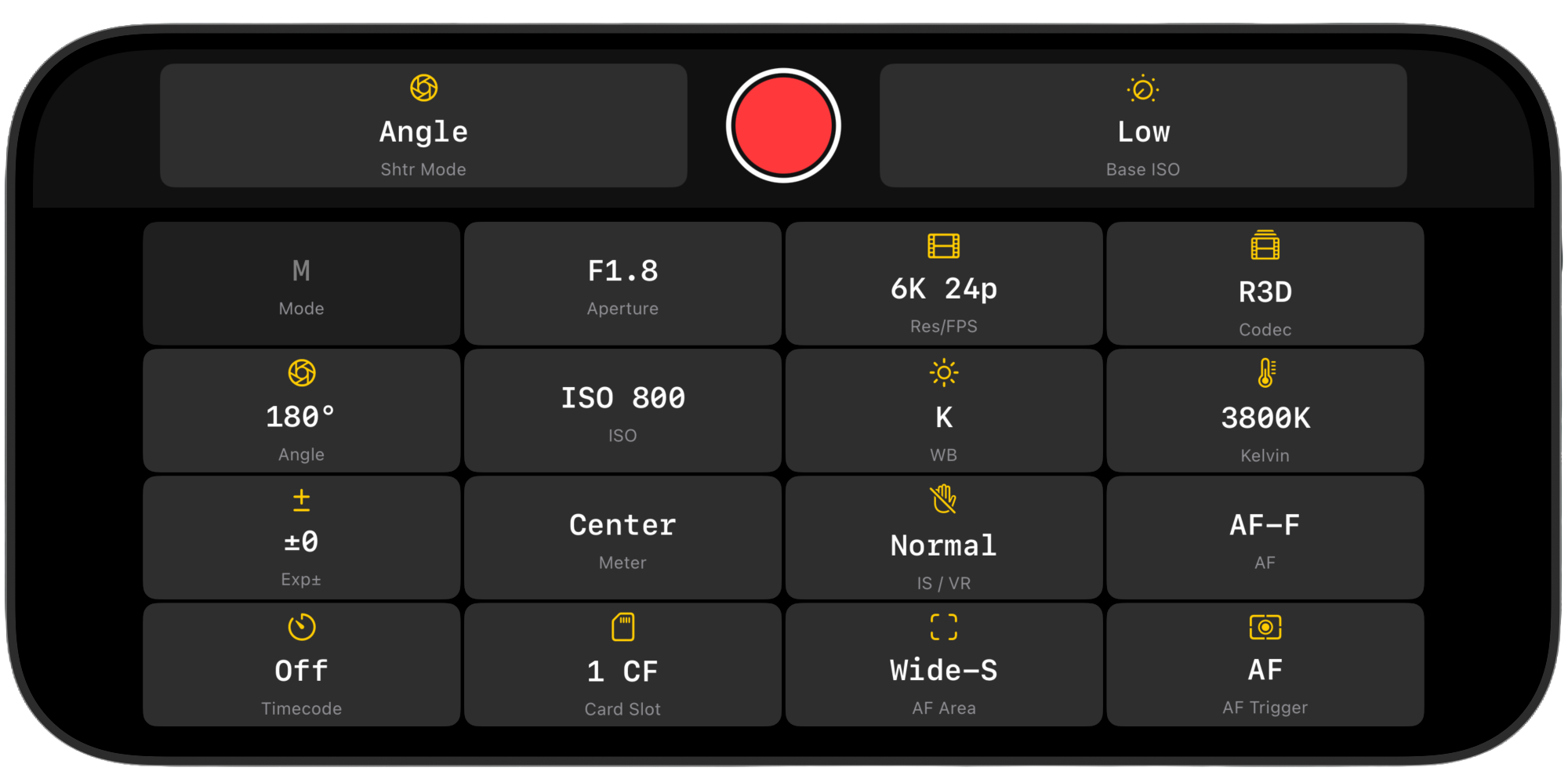
How the page works
- Two groups. Shoot holds the Exposure, Capture and Focus sections. Audio / TC holds the Audio and Timecode sections and appears only in video mode on Nikon cameras. RED cameras show their own Exposure and Capture tiles and no Focus or Audio / TC group.
- Photo or video follows the camera. The app reads the camera's photo/video selector and swaps the tiles to match. There is no switch in the app. A PHOTO or VIDEO badge in the status strip shows which the camera is in.
- Pickers list only what the camera allows. Tap a tile to open a list with the current value ticked. A setting with only two values toggles directly without a list.
- Grey means the camera owns it. A grey tile is one the camera reports as read only in its current mode. Tapping it explains why with one of these notices:
- Not reported by this camera: the body does not expose the setting.
- Controlled by the camera: the setting is fixed by a physical dial or the exposure mode. Check the camera.
- Read-only in the current mode: the camera allows several values but not right now, for example during recording.
- Set on camera dial: the exposure mode is chosen by the mode dial (Z6III, Zf, Z7II).
- Locked while recording: ISO in R3D while rolling.
- Refused writes are explained. If the camera rejects a change, a yellow notice at the bottom of the grid says "The camera is busy", "The camera did not accept that value in its current mode", "The camera has locked this setting in its current mode" or "The camera did not apply the change". On the Zf and Zfc a refused exposure write instead offers to turn on Remote Mode (see below).
- Landscape shows the record card and grid on the left and a metadata panel on the right with the camera name, transport, battery, Codec and Res (or Quality and Area in photo mode), a LENS row with focal length and maximum aperture, and the card storage bars.
The record card
At the top of the page: the record button, a status word, a clock line, a remaining line and the card-slot button.
| Element | Video | Photo |
|---|---|---|
| Status | READY (green), RECORDING (red) | PHOTO READY, CAPTURING |
| Clock | REC mm:ss elapsed, or TC hh:mm:ss:ff when Rec TC is on | STILLS, CAPTURE, or TIMER n during the app countdown |
| Remaining | REM h:mm:ss · x GB free from the camera's estimate; --:-- when it has none | n SHOTS, or the free space |
| Card slot | Shows the active slot and card type (for example 1 CF). Tap to switch between slot 1 and 2 when the camera allows it. | |
| App photo timer | — | Off, 2, 5 or 10 seconds, or Custom from 1 to 60 s. An app-side countdown before the shot; the camera's own self-timer is the Release tile's Timer entry. |
The record button does what the Live View button does: start and stop in video, capture in photo, cancel a countdown or close a Bulb exposure with a second tap. It is disabled while a command is in flight and while the camera is busy with another change.
Why a recording was refused
When a video recording does not start, a red line under the clock explains why for five seconds. The reasons come from the camera:
| Message | What to do |
|---|---|
| REC blocked — no memory card | Insert a card, or switch the card slot. |
| REC blocked — memory card error | Reseat or replace the card. |
| REC blocked — format the card in the camera | Format on the camera; the app cannot. |
| REC blocked — card is write-protected | Slide the lock tab on the card. |
| REC blocked — memory card is full | Free space or change slot. |
| REC blocked — switch the camera to video mode | Move the camera's photo/video selector to video. |
| REC blocked — exit zoom on the camera | Turn off Focus Punch or the camera's magnifier; the body will not record while zoomed. |
| REC blocked — camera is still writing | Wait for the previous clip to finish writing. |
| REC blocked — camera reports recording already active | The camera is already rolling; stop it on the camera. |
| REC blocked — camera did not allow remote recording; reconnect | On first-generation bodies the app switches the camera into application mode and you can try again; otherwise reconnect. |
| REC start rejected — camera busy | The camera was mid-command; try again in a moment. |
| Stop the Time sequence before starting video recording. | A running timelapse owns the shutter. |
Exposure section
Mode
The exposure program. The picker offers only the four PASM modes; user modes and Auto are shown but set on the camera. Bodies whose mode dial owns the setting show "Set on camera dial". In video with the R3D codec the mode is fixed at M.
Shoot video in M so exposure does not drift during a take. Changing the mode re-reads aperture, shutter, ISO, white balance and metering so the tiles match the new mode.
Aperture
Separate photo and video properties, so the value can differ between modes. Writable only in A and M; the camera greys it otherwise. Manual-aperture lenses and lenses without electronics show nothing to set.
Base ISO Video ZR
Switches the sensor between its two native ISOs. Effective only with the R3D codec on the Nikon ZR; other codecs ignore the tap. The exposure tools recalibrate to the new base.
Low (800) for daylight and lit interiors, High (6400) for genuinely dark scenes. Change the base, then set the ISO; values near a base are cleanest. See Cinematography basics.
Angle / Speed
One tile that shows the shutter as a speed, or as an angle when the camera is in angle mode. Writable in S and M. If the camera reports no list, a fallback of common speeds from 1/25 to 1/8000 is offered.
Shtr Mode Video
Switches the camera between shutter speed and shutter angle. Choosing Angle keeps motion blur constant when you change frame rate; see the 180-degree rule.
ISO
The list is re-read every time you open it, because the allowed values change with codec (N-Log, HLG and RAW narrow the list) and with the base ISO. In video with Auto ISO on the camera, the tile reads Auto 1600 with the effective value; the picker still lists manual values. In R3D the ISO is locked while recording. On the Zf and Zfc the camera refuses ISO changes unless Remote Mode is on.
Exp±
Exposure compensation for the automatic modes. Greyed in M because there is nothing to compensate.
Meter
Which part of the frame the camera's meter weighs. Highlight-weighted protects the brightest areas in automatic modes.
Remote Mode Zf, Zfc New in 2.1
The Zf and Zfc have physical dials for shutter speed, ISO and exposure compensation, and in their normal remote mode the camera refuses exposure changes from an app. Turning Remote Mode on tells the camera to take exposure from the app and ignore its dials. The first time the camera refuses a write the app asks "Turn On Remote Mode?"; the same switch is under Connection › Advanced as Zf Remote-Only Controls. It cannot be changed while recording.
Turn it on when you want to set exposure from the phone. Leave it off when the operator uses the dials and the phone is only a monitor.
Capture section
Video order: WB, Kelvin, Tint, IS / VR, Res/FPS, Codec. Photo order: WB, Kelvin, Quality, RAW, Size, Area, Picture, Release.
WB
In video, Auto expands into the camera's Auto 0, Auto 1 and Auto 2 variants (keep white, keep warm, keep warmer). In R3D the automatic modes are removed because the camera does not allow them. Choose K to unlock the Kelvin and Tint tiles.
Set K and a fixed Kelvin for every video scene. Use PRE (a measured preset from a grey card set on the camera) for mixed light. See White balance.
Kelvin
Active only when WB is K; otherwise the tile reads --. Separate photo and video values.
Tint Video
Opens the full-screen WB Fine Tune grid: tap or drag in the colour field, or nudge one step with the G, A, B and M pad buttons. The tile shows the offset, for example A2 M1.5. Available when the camera reports the movie tint as writable.
Fluorescent and cheap LED light leaves a green or magenta cast that Kelvin cannot fix. Put a grey card in the shot, open the RGB parade, and move along the G–M axis until the three traces line up.
IS / VR Video
Vibration reduction. Electronic adds a crop and is not offered in R3D. Use Off on a tripod, Normal handheld, Sport for panning and vehicle work.
Res/FPS Video
The label carries a [FX] or [DX] prefix when one size exists in two crops (ZR RAW formats), exact pixel sizes when sizes would otherwise collide (Z8 and Z9 RAW), and a ×4 or ×5 factor on slow-motion entries that the camera conforms in the file. Changing the format re-reads the ISO list.
Codec Video
The recording format. Changing it changes the available frame sizes, the ISO list, the white balance options and the exposure tool calibration (R3D switches the tools to Log3G10). See Codecs, RAW and bit depth.
Quality Photo
JPEG quality and whether a RAW file is recorded alongside. The ★ variants are the optimal-quality JPEGs. Playback groups RAW+JPEG pairs as one item.
RAW Photo
RAW compression: lossless, or Nikon's high-efficiency compression in two levels.
Size Photo
Image size in pixels as the camera reports it, for example 8256x5504.
Area Photo
The sensor crop. DX gives a 1.5x crop for reach; 16:9 and 1:1 for delivery shapes.
Picture Photo
The in-camera look for JPEGs. Custom slots show the name stored on the camera, for example C-1 MYLOOK New in 2.1. Video tone modes (N-Log, HLG) are not controllable from the app, because the camera does not expose them over the control link; the app infers N-Log from the codec.
Release Photo
What one press of the shutter does. Timer is the camera's own self-timer; the app's countdown is on the record card. Continuous modes fire while the record button is held.
Focus section Nikon
| Tile | Options | Notes |
|---|---|---|
| AF Mode | AF-S, AF-C, AF-F, AF-A, MF as the body reports | Reads MF when the lens switch is on manual. AF-F (full-time) is the video mode for continuous tracking. Video selections are remembered as startup defaults. |
| AF Area | Photo: Single, Auto, Wide-S, Wide-L, Wide-C1, Wide-C2, Dyn-S, Dyn-M, Dyn-L, 3D, Pinpoint. Video: Single, Auto, Wide-S, Wide-L, Wide-C1, Wide-C2, Target. Older bodies: Single, Auto, Wide-S, Wide-L, Face, Wide, Normal, Track | Where the autofocus looks. Wide-S with subject detection is the usual video choice; Single for a fixed point. |
| Subject | Off, Auto, People, Animal, Vehicle, Birds, Airplanes | Subject detection. Pick the subject type so the camera does not jump to the wrong thing. |
| Touch Focus | Instant, Cinematic | What a tap in Live View does: drive focus now, or move the point and let continuous AF rack to it. Left on Auto, the app picks Instant for stills and AF-S, Cinematic for AF-C and AF-F. An app setting, not a camera write. |
| Pull Time | 0.5, 1, 2, 3, 5, 8 s (cycles) | The hold time at each point in a Live View focus pull. Video only. |
| AF Speed | Low −5 to −1, Normal, High +1 to +5 | How fast the camera racks focus in video. Low values give cinematic moves. |
| AF Apply | Always, Record Only | Whether the AF speed applies all the time or only while recording (so framing-up is quick and the take is smooth). |
Tracking sensitivity (Locked-On to Very Responsive) is set as a startup default in Advanced › Camera, not on this page.
Audio section Video Nikon
| Tile | Options | What it does |
|---|---|---|
| Sens | Auto, or manual 0 to 20 | Microphone input sensitivity (gain). The same control sits under the AUD meters in Live View. Set it so dialogue peaks around the −12 mark with the loudest moments short of the red. |
| 32F | ON, OFF | 32-bit float recording on bodies that support it. Practically clip-proof; levels can be corrected in post. |
| Input | Mic, Line | Mic for microphones; Line for the strong signal from a mixer or wireless receiver set to line out. |
| Wind | On, Off | A low-cut filter against wind rumble. Leave off indoors; it thins voices. |
| Atten | On, Off | A pad for loud sources (concerts, engines) so the preamp does not clip. |
| Resp | Wide, Vocal | Frequency response: Wide for music and ambience, Vocal for speech. |
Audio meters in Live View
The AUD pill shows left and right meters with a scale from 0 down to −48, a peak hold, and colour bands: green below 72%, orange to 92%, red above. The ▲ and ▼ buttons change the camera's sensitivity in the steps above. Meters are also shown for RED cameras and HDMI sources, and per camera in Multicam. The app does not play camera audio to headphones; the meters are for level only.
Timecode section Video Nikon
| Tile | Options | What it does |
|---|---|---|
| Rec TC | Off, On, HDMI | Records timecode into the file (On), also sends it over HDMI (HDMI), or not at all. Turning it on switches the record card clock to the TC value. |
| Method | Rec Run, Free Run | Rec Run counts only while recording; Free Run runs continuously like a clock. Disabled while Rec TC is off. |
| Drop | Drop frame, Non-drop | Drop-frame counting for 29.97 and 59.94 fps. Leave non-drop at 24, 25 and 30. |
| Reset | Action | Sets the timecode to 00:00:00:00. Disabled while recording ("Stop rec"), with Rec TC off ("TC off"), or on bodies without timecode ("Unavailable"). |
To set every camera to the same time of day, use Timecode Jam-Sync in Multicam; the single-camera page only resets to zero. The live TC value is read from the Live View stream and shown here, in the Live View top bar and in Multicam.
Slow motion
There is no separate slow-motion tile; high-frame-rate formats appear in the Res/FPS list with a ×4 or ×5 suffix. For one-tap switching, save a format and codec under Advanced › Camera › Slow Motion Target and use the SLOW pill in Live View: on remembers the current format and writes the target; off restores the format. See Advanced settings.
Startup defaults and remembered writes
Values you set on this page are remembered and replayed when the camera reconnects, and Advanced › Camera › Startup Defaults can force a format, codec and AF behaviour before Live View starts. See Advanced settings.
Hardware triggers
While the Controls page or Live View is in front and no picker is open, these fire the record button:
- The iPhone's volume buttons.
- The Camera Control button on iPhones that have one (iOS 17.2 or later).
- Bluetooth shutter remotes that act as volume keys.
Repeated presses within three quarters of a second are ignored so a remote that chatters does not start and stop a clip. The app parks the phone's volume at a mid level while the trigger is armed so both buttons produce an event, and restores it afterwards.
RED cameras
With a RED connected, the page shows RED tiles whose options come from the camera: Aperture, Angle or Shutter, ISO, ND, Kelvin, Tint, Sensor FPS, Project FPS, Format, Codec, R3D Quality and Live Stream. The record card shows TC and media remaining. See RED cameras.
Something missing or wrong on this page? Email mike@itsmadcreative.com with the page name and what you expected to find.