Chapter 08
Focus tools.
Seeing focus on a phone screen is hard, and video focus cannot be fixed afterwards. The app gives you peaking to see sharpness, zoom to check it, tap-to-focus to set it, and two ways to pull it: between autofocus points, or by driving the lens directly.
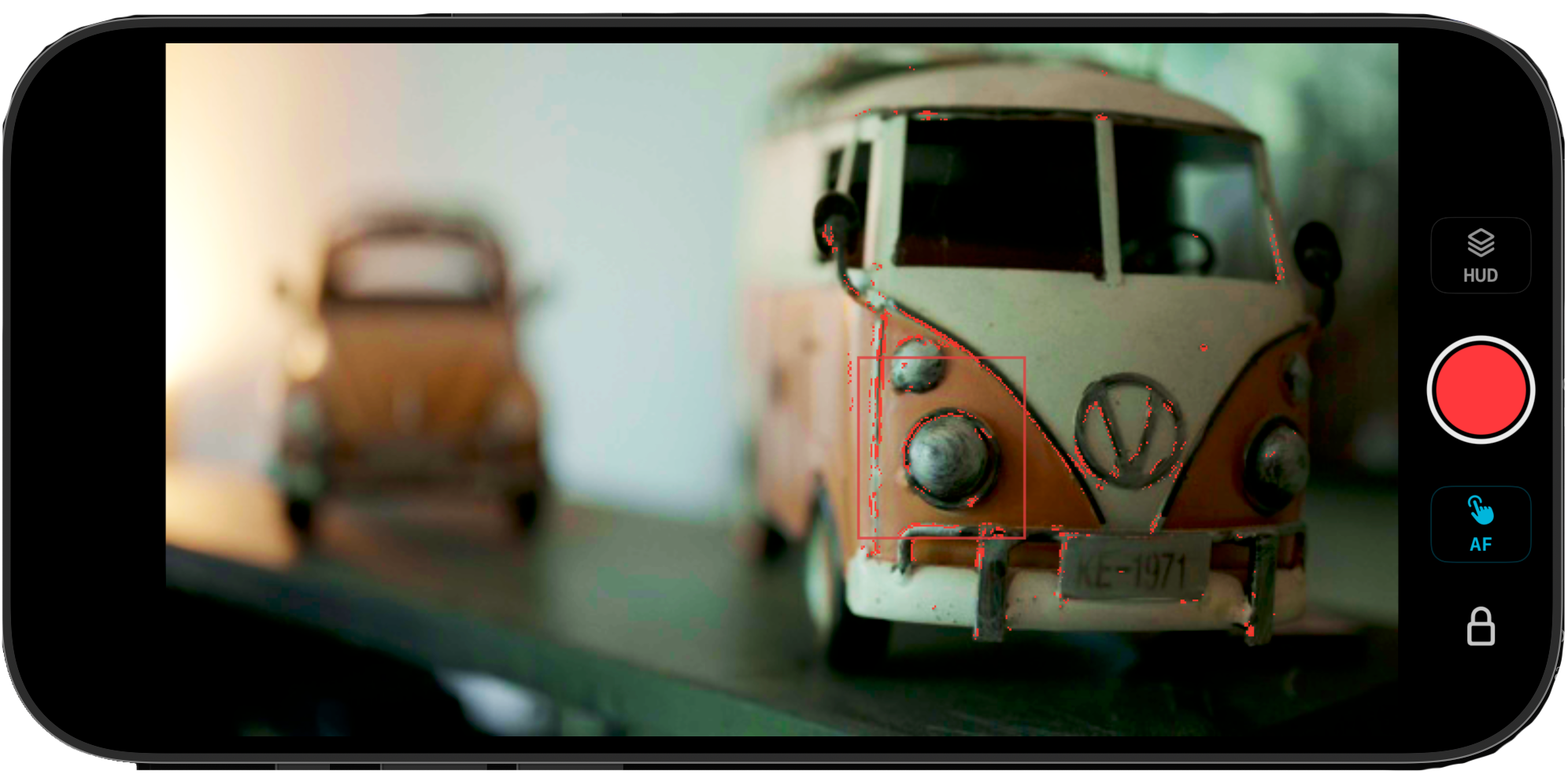
PEAK: focus peaking
Peaking runs on the GPU and marks edges by their sharpness relative to the surrounding scene, with temporal smoothing so the marks do not sparkle, and a dark halo so the ridges read against bright backgrounds. The same settings live in Advanced › Monitoring › Focus Peaking.
- Sensitivity: higher values mark finer detail; very high values pick up sensor grain. Lower it for noisy high-ISO scenes, raise it for soft, low-detail subjects.
- Mono Background: the picture goes monochrome while peaking is on, so the coloured ridges are the only colour on screen.
- Colour: pick the one that contrasts with your scene. Cyan or white in warm interiors; red or yellow against sky and foliage.
Always, when pulling focus by hand. Peaking stays on while recording and does not change the recording. For critical focus on an eye, add Focus Punch for a moment, then come back to peaking.
Touch AF
Tap the picture to focus there. The AF button (a hot corner in Modern, a rail button in Classic) turns tap-to-focus on or off. A yellow box appears at the tap and turns green when the camera confirms focus. Nikon AF-area boxes from the camera and RED face boxes are drawn too.
What a tap does depends on the Touch Focus mode, set on the Controls page:
- Instant drives the autofocus immediately, like a half-press.
- Cinematic only moves the AF point; the camera's continuous AF then racks focus to it at the AF speed you set, which gives a smooth, deliberate move.
Left on automatic, the rule is: stills and video AF-S use Instant; video AF-C and AF-F use Cinematic. A Cinematic tap in video AF-S switches the camera to AF-F when it can. In photo mode with a manual-focus lens, a tap only moves the AF area. The override is cleared when you run a Focus Pull or toggle Touch AF.
Touch AF Hides Box in Advanced › UI › Bottom Toolbar hides the AF box and tap feedback whenever Touch AF is off.
Cinematic for smooth on-camera focus moves during a take. Instant for stills and for snapping focus before you roll. Turn Touch AF off on a gimbal or in a pocket so stray touches do not refocus.
ZOOM: punch and zoom
One pill holds four magnification tools. Its label follows the chosen mode: LOCAL, PUNCH, PZ or HI-RES. Tap toggles the chosen tool; long-press opens the Zoom Mode menu. A mode the camera cannot do shows a suffix such as "(not during RAW)", "(unavailable)" or "(format dependent)". The choice is remembered.
Monitor Punch (LOCAL)
Magnifies the picture on the phone only. The camera does not know, so recording and the camera's own screen are unaffected. It cannot be enabled while Focus Pull has points set.
Checking focus while recording, where the camera's own magnifier is not allowed. The detail is limited by the preview resolution, so set XGA on USB if you lean on it.
Focus Punch (PUNCH) Nikon
Uses the camera's magnifier, so you see full-resolution detail from the sensor rather than a blown-up preview frame. The last frame is kept on screen while the camera switches so the picture does not go black.
Critical focus before a take, especially on wide lenses and small screens. Switch it off before you roll RAW, or the camera will refuse to record while the magnifier is active.
Power Zoom (PZ) Nikon
Drives the lens's zoom motor while you hold the button. Zoom stops when you let go, when the app goes to the background or when the connection drops.
Hi-Res Zoom (HI-RES) Nikon
Turns on the camera's high-resolution zoom, a sensor crop that keeps full output resolution. The magnification stays under the camera's control; the panel shows ON. Only offered in formats where the body allows it ("format dependent" otherwise).
PULL: focus pull between AF points Video Nikon
Tap Add Points, then tap the picture at each subject you want to rack between. Markers can be dragged. Each point row shows the estimated travel time plus its hold; the hold button on a row cycles that point's hold and NEW HOLD sets the hold for points you add next. AF Speed cycles the camera's AF speed (it shows "REC only" when the body only applies the speed while recording). Press ▶ to run: the camera moves its AF point through the list, waiting the estimated travel plus the hold at each, then ■ cancels. Starting from AF-S switches the camera to AF-F and restores AF-S afterwards.
Running a pull resets any Touch Focus override and closes Monitor Punch and the MF drive. The pill is lit while adding points, running, or when two or more points exist.
Repeatable focus moves with an autofocus lens: interview to product, foreground to background, a slow reveal. Set the AF speed low (−3 to −5) for a cinematic rack; the estimate in the panel tells you how long each move takes.
MF: manual focus drive Video Nikon
The overlay has a vertical tape (0 to 100, starting at 50) and a set of buttons; on phones a chevron expands or collapses them.
- Drag the tape to drive focus. Faster drags take bigger steps.
- SET IN and SET OUT store the current lens position as the In and Out marks. GO IN and GO OUT jump to them. CLR clears both.
- TIME sets how long a timed pull takes. PLAY runs a smooth pull from the current position to the farther mark; STOP cancels.
- The lens line shows focal length, lens ID and the non-CPU profile when one is active. CAL INF stores an infinity calibration for the lens while the tape sits at infinity, which makes the tape positions repeatable for that lens; RESET clears it after a confirmation.
Opening MF closes Focus Pull setup, and starting a pull or a focus stack closes MF. Tape positions are relative steps, not distances in metres.
Repeatable pulls without autofocus hunting, and lenses where you want a precise, slow move. Mark In on the first subject, Out on the second, set a time, and PLAY gives the same move every take.
LENS: non-CPU lens profiles Nikon
Manual lenses without electronics (adapted vintage glass, cine primes) cannot tell the camera their focal length or aperture, so in-body stabilisation and metadata are wrong unless you enter the data in the camera's Non-CPU Lens Data menu. The LENS pill, shown only on bodies that expose that data, lets you keep named profiles in the app and write them to the camera's twenty lens slots.
Import All Lenses New in 2.1 reads the camera's whole lens table in one go and adds every lens the app does not yet have, keeping the camera's numbers and names. Existing profiles are never changed. Profiles can also be managed in Advanced › Camera › Lens Profiles, and the active profile is shown on the MF tape.
Any time you swap manual lenses. Select the profile and the camera's lens number follows, so VR and the recorded metadata match the glass on the front.
Focus stacking
Automated focus stacking for stills drives the lens between frames and is covered in Stills, timelapse, stacking.
Something missing or wrong on this page? Email mike@itsmadcreative.com with the page name and what you expected to find.