Chapter 12
Stills, timelapse and focus stacking.
When the camera's selector is on photo, Live View becomes a stills remote with its own readouts, an instant review of each frame, automated focus stacking and a full intervalometer that builds the timelapse video on the phone.
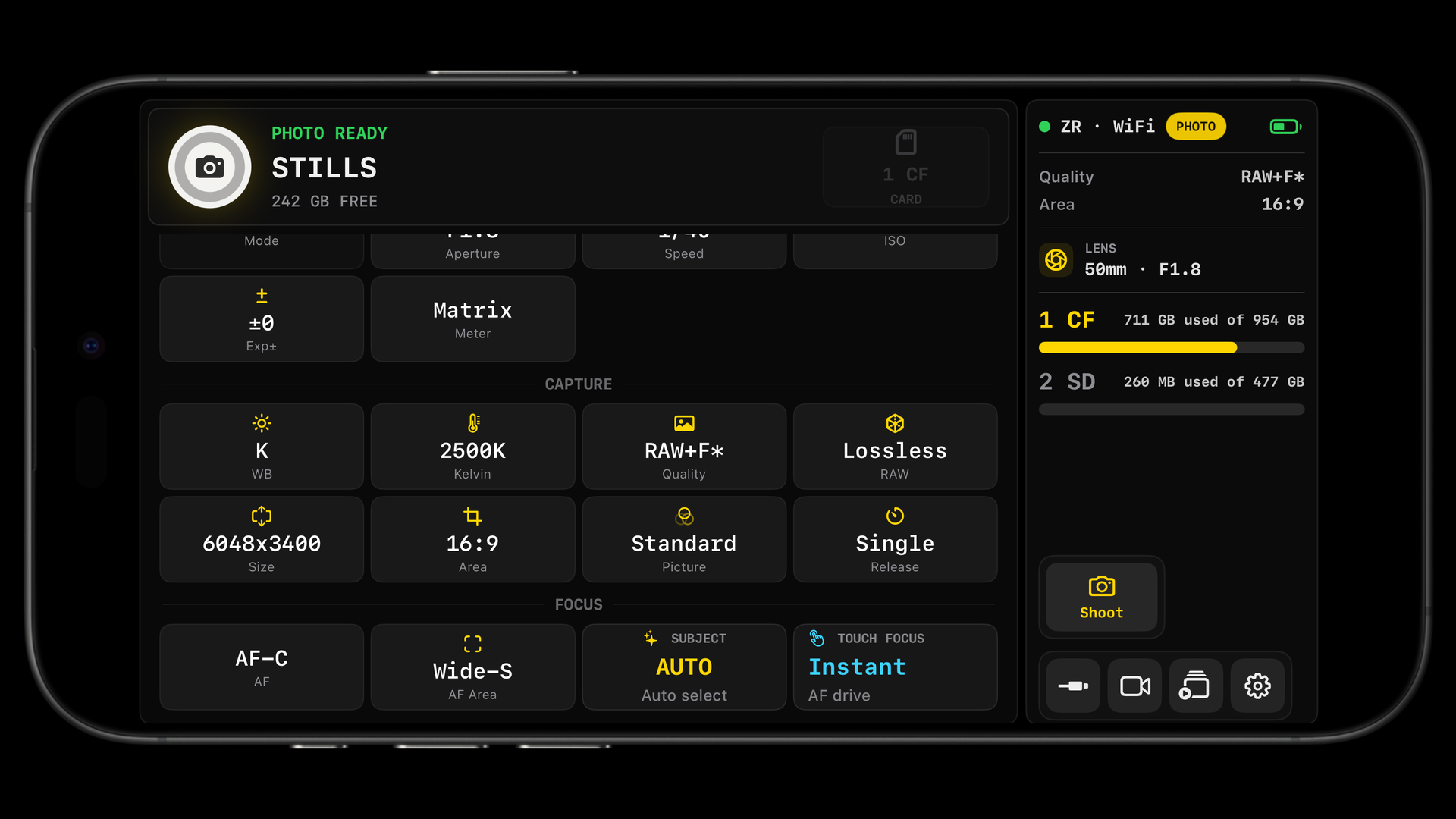
Photo mode basics
- The app follows the camera's photo/video selector. In photo mode the LUT preview is off, the audio meters are hidden, and the top centre reads PHOTO.
- The record button captures. With a timer set, a countdown runs first and a second tap cancels it. Holding the button fires continuous release in CL and CH modes. During Bulb or Time a second tap closes the shutter.
- The phone's volume buttons, the Camera Control button and Bluetooth shutters fire the shutter too.
- Photos are written to the camera card. The app does not capture to the phone directly; use Playback or a tether session to bring them over.
- Exposure, white balance, quality and focus settings are on the Controls page. Peaking, scopes and guides keep working in photo mode.
The stills readouts
Five chips in the bottom-left strip, each a tap-to-open picker. Hide the ones you never change in Advanced › UI › Bottom Toolbar.
| Chip | Options | Notes |
|---|---|---|
| TIMER | Off, 2 s, 5 s, 10 s, Custom 1 to 60 s | The app's own countdown before the shot, shown as a large digit on screen. Independent of the camera's self-timer. |
| RELEASE | Single, CL, CH, CH+, Timer, C15, C30, C60, C120 | The camera's release mode. Timer is the camera's self-timer; C15 to C120 are high-speed frame capture on bodies that have it. |
| QUALITY | Basic to Fine★, RAW, RAW + JPEG combinations | JPEG quality and RAW. |
| AREA | FX, DX, 1:1, 16:9 | Sensor crop. |
| PIC | Picture Controls, including named custom slots | The in-camera look. |
Bulb and Time
On bodies that offer them, Bulb and Time appear in the shutter picker (the Speed tile on Controls, or the SHUTTER chip). With Bulb the exposure runs while you hold the record button; with Time one tap opens the shutter and the next closes it, which is easier for multi-minute exposures. The elapsed time shows on screen and in the Live Activity on the Lock Screen. The TIME tool can run Bulb or Time exposures of a set length automatically.
Astrophotography, light painting, long water and traffic exposures: anything beyond the camera's 30-second limit. Use Time rather than Bulb so you are not holding the phone.
REV: photo review
After each capture the camera's JPEG is fetched and shown over the picture with the filename, the exposure (aperture, shutter, ISO), a yellow box at the focus point and a star button to favourite it. Touching the review pauses the timer; a long-press holds it until you let go.
Always, unless you are shooting fast bursts and the review gets in the way. Set a longer hold for product work where you want to study each frame.
PLAY: QuickPlay
In photo mode the HUD/Play hot corner reads PLAY and opens QuickPlay, a lightweight viewer of the recent JPEGs on the card: swipe between frames, favourite, rate, pick, colour-tag, save to Photos or delete, without leaving Live View. Long-press the corner to switch it back to a HUD button if you prefer.
STACK: focus stacking Nikon
Focus on the nearest point you want sharp, set the frame count and step, choose the direction and tap Start Focus Stack. The app takes a frame, drives the lens one step, and repeats, showing "Capturing frame 3 of 12". Every frame is saved to the card for stacking in Helicon Focus, Zerene, Photoshop or Lightroom. The stack stops by itself at the lens's focus limit, and Cancel Stack stops it early.
Smaller steps and more frames for macro at wide apertures, where depth of field is a few millimetres; larger steps for product tables at f/8. Run a short test stack and check for soft bands between frames; if you see any, halve the step.
TIME: timelapse and intervalometer Nikon
The TIME tool runs a sequence of exposures on a schedule and, if you want, assembles them into a video on the phone. The app controls the shutter; the camera's own interval timer is not used, so keep the app open for uninterrupted timing. Tap the pill for the Sequence section; long-press for the section list.
Sequence
The name (automatic or custom), the status (Ready, Preparing, Next exposure, Exposing, Paused, Finishing, Creating video), the shot count, a countdown to the next exposure, the estimated shooting time and the length of the resulting clip. Buttons: Start sequence, Pause after exposure / Resume, Stop. The Live View record button also stops a running sequence.
Capture
| Setting | Options | Default |
|---|---|---|
| Shutter | The camera's current setting, or any shutter value including Bulb and Time | Camera setting |
| Bulb / Time duration | 0.1 s to 24 h | 180 s |
| Finish after | Shot count, Duration, Until stopped | Shot count |
| Shots | 1 to 1,000,000 | 20 |
| Sequence duration | 0.1 s to 7 days | 1 hour |
Aperture, ISO, white balance, focus and RAW or JPEG quality use the camera settings you have already made.
Timing
| Setting | Options | Default |
|---|---|---|
| Start delay | 0 to 24 h | 0 |
| Timing | Gap after exposure, or Start-to-start interval | Gap after exposure |
| Gap / Interval | 0 to 24 h | 2 s |
Gap after exposure waits a fixed time after each exposure ends, which is safe for long exposures of varying length. Start-to-start interval fires at a fixed cadence, which is what you want for a steady timelapse; the interval must be longer than the exposure plus the camera's write time. If the camera is late, the app does not fire a burst to catch up; it simply continues.
Video
| Setting | Options | Default |
|---|---|---|
| Create video after capture | On, off | Off |
| Image source | Quick stitch (camera previews), Original images (JPEG preferred), RAW originals | Quick stitch |
| Frame rate | 1 to 120 fps | 24 |
| Long edge | 720, 1080, 1920, 3840 px | 1920 |
| Aspect ratio | 16:9, 9:16, 1:1 | 16:9 |
| Framing | Fit entire image, Fill and crop | Fill and crop |
| Codec | H.264, HEVC | H.264 |
| Bitrate | 1 to 200 Mbps | 20 |
A quick stitch uses the small previews the camera already sent, so it is ready almost immediately and is good for checking motion. Rendering from originals downloads each full file first and gives a 4K-capable result. Videos can be created or re-created later from the Timelapses tab in Playback.
Display and presets
Show countdown and Show sequence progress control the on-screen status. Red night display is intended for astrophotography sessions. Presets save a whole TIME configuration under a name for reuse.
Working out a timelapse
Clip length equals shots divided by frame rate. At 24 fps, 240 shots give 10 seconds. Real time equals shots times the interval: 240 shots every 5 seconds is 20 minutes. The Sequence section shows both estimates as you change settings. For a sunset, a 3 to 5 second interval over 30 to 45 minutes is a sensible start; for clouds, 1 to 2 seconds; for stars, use Bulb exposures of 15 to 25 seconds with a short gap.
The app owns the schedule, so keep the app open and the phone awake (the app keeps the screen on). The sequence appears in the Live Activity on the Lock Screen with the shot count and countdown. A video recording cannot start while a sequence runs.
Tethered review
To see each shot full size as it lands, run a tether session on the Playback page. It watches the card, groups RAW+JPEG pairs and follows the newest capture. See Playback.
Something missing or wrong on this page? Email mike@itsmadcreative.com with the page name and what you expected to find.