Chapter 13
Playback.
Playback browses the camera card over the same connection you monitor with. Review takes, play clips through a LUT, judge slow motion at the delivery frame rate, cull stills, and save originals or graded copies to Photos without pulling the card.
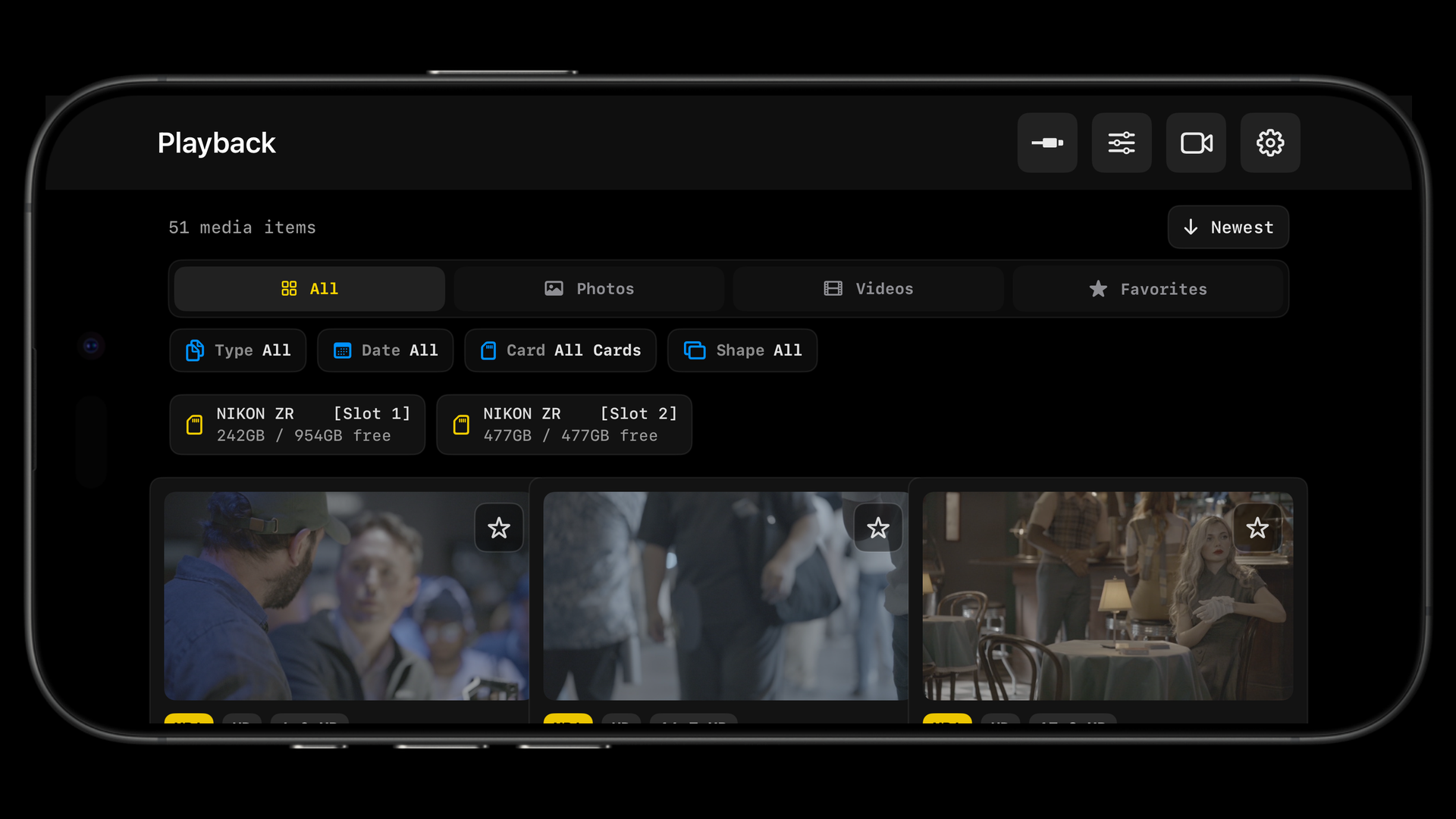
The gallery
On arrival the app reads the card listing and fills in thumbnails progressively. The status line in the header tells you what it is doing ("Scanning card…", "Loaded 240 of 512 card files", "Playback cache ready"). The gallery is kept per camera body and per card, so switching cameras loads that camera's library, and the last library stays browsable offline for anything that was cached.
Tabs
| Tab | Shows |
|---|---|
| All | Everything on the card. |
| Photos | Stills, with RAW+JPEG pairs merged into one card. |
| Videos | Playable clips, plus N-RAW and R3D clips when Show RAW video is on. |
| Timelapses | Sequences captured with the TIME tool, stored on this device. |
| Session | Photos saved to this device by a tether session. |
| Favorites | Starred items. |
Filters
The Filters button opens a panel; active filters show as chips you can tap to remove.
- Type: one entry per file format on the card (JPG, NEF, MOV, MP4, HEIF and so on).
- Show RAW video: lists N-RAW and R3D clips. They cannot play on the phone, so they are hidden by default and the status line says how many are hidden.
- Date: one entry per capture date.
- Card: slot 1 or slot 2.
- Shape: Wide, Tall, Square or Unknown.
- Review: Pick (Unmarked, Approved, Rejected), Rating (1+ to 5+ stars), Color (None, Red, Yellow, Green, Blue, Purple).
The sort button toggles Newest and Oldest. Filters and sort order are remembered.
Header buttons
Refresh re-reads the card (use it after shooting more, or when the camera denied access). Load thumbnails fetches previews for what is on screen. The info button toggles the filename and format overlay on each card. Select media enters selection mode. The camera button starts or ends a tether session.
Cards
Tap a card to open it. A star in the corner marks a favourite. A number chip at the top left means a burst (consecutive photos less than a second apart) stacked into one card; tap the chip to expand it. A RAW+JPEG badge means both files exist and are treated as one capture. A coloured stripe and a capsule show the colour label, pick state and star rating.
Culling: favourites, stars, picks, colours
Both viewers have a review strip: Reject and Pick, a row of one to five stars, and a colour tag (Red, Yellow, Green, Blue, Purple). Tap the current value again to clear it. Favourites apply to the whole RAW+JPEG pair.
Ratings, picks, colours and favourites live on the phone. They are not written to the camera and do not travel with the files into Lightroom. Use them to narrow a selection on set, then use Download selected originals to hand the picks over.
Selection, download and delete
In selection mode, tap cards to select them (a card selects its whole RAW+JPEG capture), or Select all visible. Then:
- Download selected originals pulls the full files to the device and opens the share sheet, so you can AirDrop or save them. A progress card shows the file in flight and can be cancelled.
- Delete selected media removes the files from the card after a confirmation that counts captures and files. If a selected MP4 proxy has a paired R3D, a second button Delete Selected + Paired RAW removes both. Session items are only removed from the app, never from the card.
Single items can be deleted from their viewer. The camera must support deletion over the control link; most Z bodies do.
The video player
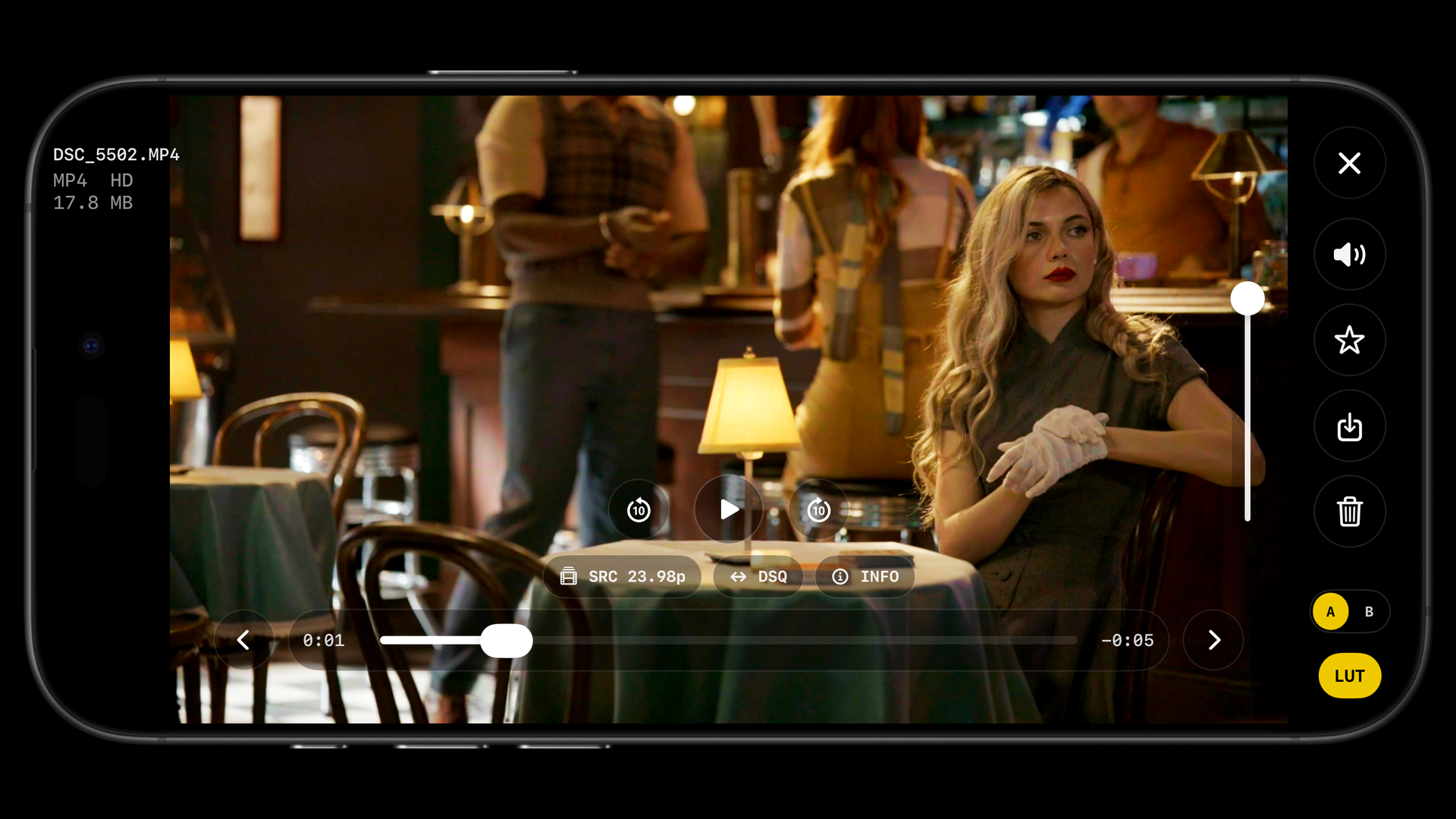
- Transport: skip back 10 s, play/pause, skip forward 10 s. The scrubber shows elapsed and remaining time; a thin second bar shows how much of the clip has been cached. Seeking past the cached part waits for the download.
- Swipe left or right on the picture for the previous or next clip. Tap to hide or show the controls; the eye button pins them.
- Side rail: close, pin HUD, filmstrip (iPad), mute, favourite, save to Photos, delete, clip details. A vertical volume slider sits on the rail; the app plays clip audio through the phone speaker, AirPlay or Bluetooth.
- Clip details: format, codec, resolution, frame rate, bit rate and size.
Playback speed (conform)
Plays the clip as if it were on a timeline of the chosen rate. A 120 fps clip at 24p plays at 0.2x, which is exactly the slow motion you will get in the edit. The badge shows the resulting speed.
Checking a slow-motion take on set before moving on. Does the action still read at one fifth speed? Is there enough handle at the ends?
Desqueeze
Stretches anamorphic clips for review. Shares its value with the Live View DSQ tool. In the photo viewer the same menu squeezes stills vertically.
LUT A/B
The LUT button turns the look on or off and the A/B button switches between two slots. A is whatever Live View is using; B is a saved look, by default the N-Log to Rec.709 conversion. Hold the A/B button to see both assignments and Change either from the LUT catalog. Changing A also changes the Live View LUT. Advanced › Playback chooses which slot the player starts on. Match settings (exposure, gamma, contrast) carry over from Live View.
Keep B as a neutral technical conversion. Flip to it when a creative look in A makes you doubt the exposure or the skin tones.
Save clip to Photos
One button, two outcomes. With the LUT off and speed on Source, the original camera file is saved as-is. With the LUT on, or a speed other than Source, a rendered MOV copy is exported with the LUT baked in and the timeline conformed to the chosen rate. The source timecode track is kept in a rendered copy only when the speed is Source; a conformed copy has no timecode.
Send a client a graded selects reel from set, or hand an editor a conformed slow-motion preview. For the real edit, keep working from the card.
Large clips, proxies and what cannot play
- Clips over 4 GB play on bodies that support Nikon's 64-bit transfer (every modern Z body). Older bodies show a message that the size cannot be resolved.
- For a large MOV master that has a same-name MP4 proxy on the card, the proxy is played instead and the player shows PROXY PLAYBACK. Favourite and delete still apply to the master.
- Clips stream progressively into a local cache; H.265 up to 6K plays, tuned separately for USB and Wi-Fi. Over Wi-Fi a 6K clip may buffer for a while; USB is several times faster.
- N-RAW and R3D cannot play on the phone. There is no decoder for them. They are listed with Show RAW video so you can delete or count them.
The photo viewer
- Pinch to zoom from 1x to 8x and drag to pan; pinch back to reset. Swipe for the previous or next photo.
- The info button shows the EXIF panel (camera, lens, ISO, shutter, aperture, exposure bias, focal length) and a histogram.
- View RAW / View JPEG switches between the two files of a pair. RAW files are shown from their embedded preview.
- Save photo to Photos adds the original file with its name and type; a RAW is added as the original RAW resource, not converted.
- Following Latest appears during a tether session and keeps the viewer on the newest capture.
Tether session
A tether session watches the card for new photos and shows each one as it is taken, like tethered shooting without a computer. Start it with the camera button in the gallery header.
- The app records what is on the card now, creates a session named by date and time, switches the scope to Current Session and turns on Follow Latest. New photos appear within a few seconds of capture; RAW+JPEG pairs are grouped.
- The scope row switches between Current Session and All Card Media. Only photos are imported; clips are skipped.
- Leaving the Playback page pauses the session and returning resumes it. A disconnect leaves the session waiting; reconnecting the same camera and card resumes it after the app verifies the card is the same.
- End stops watching. Delete (available once ended) removes the session's previews and downloaded files from the phone. Nothing is ever deleted from the card by a session.
- The most recent session is restored on launch so you can keep culling later.
Client reviews during a stills shoot, and any time an art director wants to see frames as they land. Rate and pick as you go, then Download selected originals at the end.
Timelapses
Sequences captured with the TIME tool appear under the Timelapses tab with their shot and clip counts. Open one to Create video (quick stitch from camera previews, from original JPEGs, or from RAW originals), Export all originals for Lightroom, and share the saved files. Originals stay on the camera until you download them. See Stills, timelapse, stacking.
Cache and link speed
Playback keeps streamed clip ranges, downloaded clips, photos and thumbnails in a cache so recently opened items start instantly, offline too. The limit is 20, 30, 40 or 50 GB (default 40) in Advanced › Playback, where you can also clear it. The same card shows the measured card read speed and a Test Link Speed button that classifies the connection: USB 3, USB 2, or fast, typical or constrained Wi-Fi. If a USB-C cable classifies as USB 2, try another cable; a USB 3 cable reads several times faster. See Advanced settings.
RED playback
With a RED connected, the Playback page becomes a remote for the camera's own playback: clip list, play and pause, previous and next clip, 24-frame steps, with the camera's decoded output streamed to the phone. Nothing is downloaded. See RED cameras.
Something missing or wrong on this page? Email mike@itsmadcreative.com with the page name and what you expected to find.