Chapter 10
Framing and guides.
Five tools help you compose: COMP draws composition grids, FRME draws delivery frames with a matte, DSQ stretches anamorphic pictures, REF ghosts a reference frame over the live image, and LVL shows the camera's level.
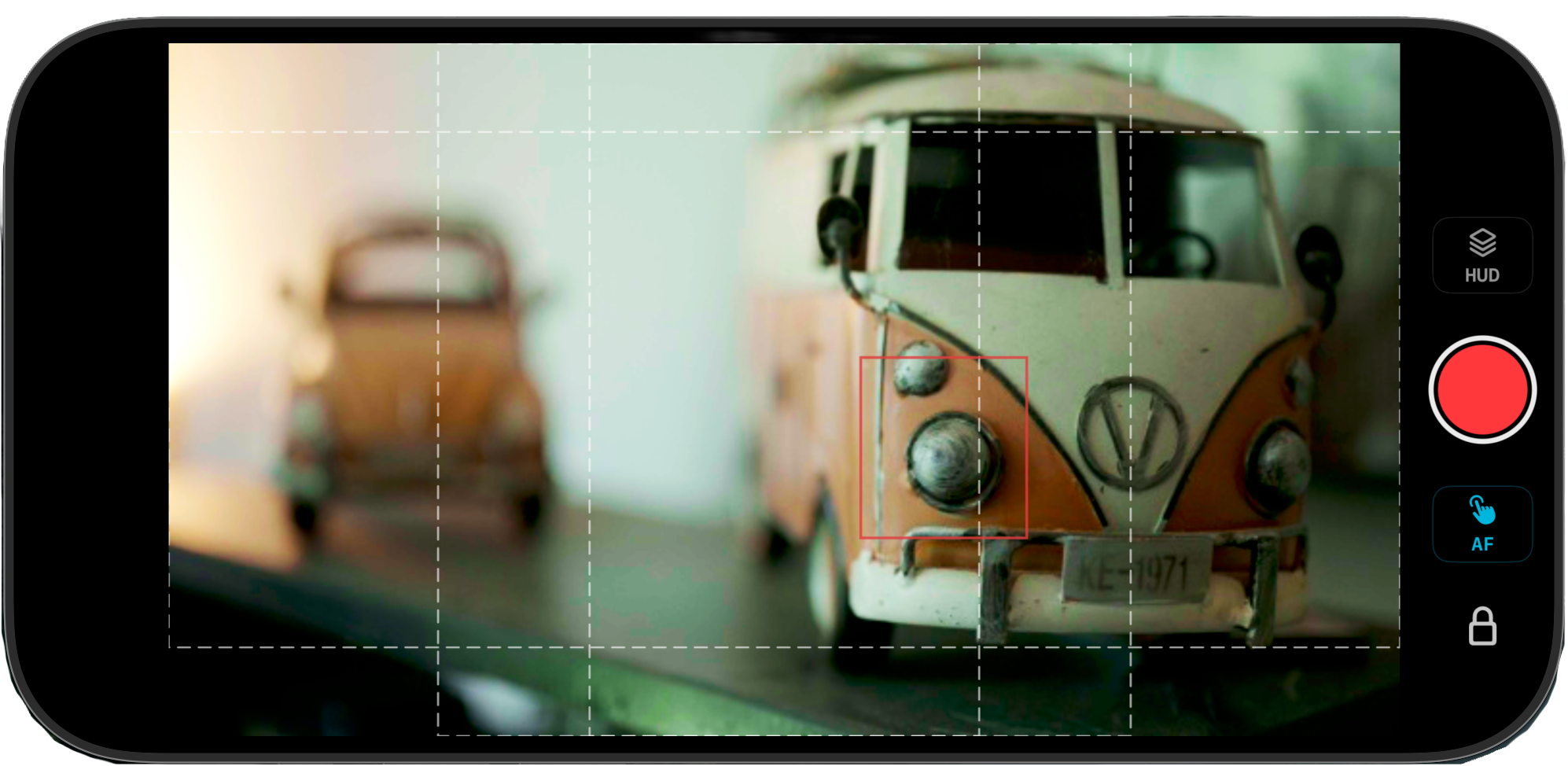
COMP: composition guides
| Guide | Draws | Use for |
|---|---|---|
| 3rds | Two horizontal and two vertical lines at thirds | The rule of thirds: subjects and horizons on the lines. |
| 4x4 | A four-by-four grid | Levelling and aligning architecture; centring without a cross. |
| Golden | Lines at the golden ratio (about 38% and 62%) | A tighter-to-centre version of thirds. |
| Tri | Golden triangles: a diagonal and two perpendiculars | Dynamic, diagonal compositions. |
| Diag | Corner-to-corner diagonals | Leading lines and symmetry checks. |
| Cross | A centre cross | Centred framing, product shots, lens tests. |
| Safe | Action-safe (3.5% inset) and title-safe (5% inset) boxes | Broadcast and anything that will be cropped or overlaid. |
Normally one guide shows at a time and tapping the active one clears it. With Multi on, each row toggles independently so you can stack, for example, 3rds and Safe.
FRME: frame guides and matte
A frame guide outlines the delivery shape over the picture with a chip showing its ratio (a custom guide reads CUST 2.35). With a single guide, the matte darkens everything outside it and the floating tools lay out inside it. Scale shrinks the guide inside the picture, which is useful when you plan to stabilise or reframe in post and want to compose with margin. Multi shows several ratios as dashed comparison guides, for example 16:9 and 9:16 together when one shoot must deliver both.
Any time the delivery shape differs from the sensor shape: 2.39 for widescreen, 9:16 and 4:5 for social cuts from a horizontal frame, 1:1 for square. Raise the mask to 75% or 100% when the client is watching so they only see the delivery frame.
DSQ: anamorphic desqueeze
Stretches the picture horizontally by the lens's squeeze factor so you see the real frame. The camera file stays squeezed; the editor desqueezes it again. Frame guides and the other overlays follow the desqueezed picture. The same ratios are available in the clip player.
Use the factor printed on the lens: 1.33x for most "anamorphic for 16:9" lenses, 1.5x and 1.8x for several modern cine lenses, 2x for classic anamorphic. If the camera has its own desqueeze set, leave the app's off or you will stretch twice.
REF: reference frame
A reference is a frozen still of the picture drawn as a ghost over the live image. You can keep several and switch between them. References follow portrait fill, camera rotation and Monitor Punch. They last for the session and are not saved.
Matching a shot to an earlier take, a reverse angle, or yesterday's setup: capture the reference, come back, and blink between them until the framing lines up. Also handy for continuity of props and eyelines.
LVL: camera level
- A Horizon: a dashed true horizon with a tilted active line, plus a cross-axis offset.
- B Bars: a roll bar along the bottom and a tilt bar on the right, each to ±15 degrees.
- C Bubble: a bubble in a circle, like a spirit level, to ±15 degrees.
The data comes from the camera's own level sensor through the Live View metadata, so it reports the camera, not the phone.
Locked-off shots, architecture, product tables, and any time the phone is mounted at an angle to the camera so you cannot judge level by eye. Horizon is best for landscapes; Bars for tripod set-ups where you also care about tilt; Bubble for a quick glance.
Vertical shooting
The picture follows the camera's orientation automatically, so a camera mounted grip-up shows a vertical picture with the guides rotated to match. Use a 9:16 or 4:5 frame guide in Multi mode with 16:9 when you need both deliveries from one setup, and FLIP in portrait if the rig is mounted the other way up. See Live View.
Something missing or wrong on this page? Email mike@itsmadcreative.com with the page name and what you expected to find.