Chapter 06
The Live View page.
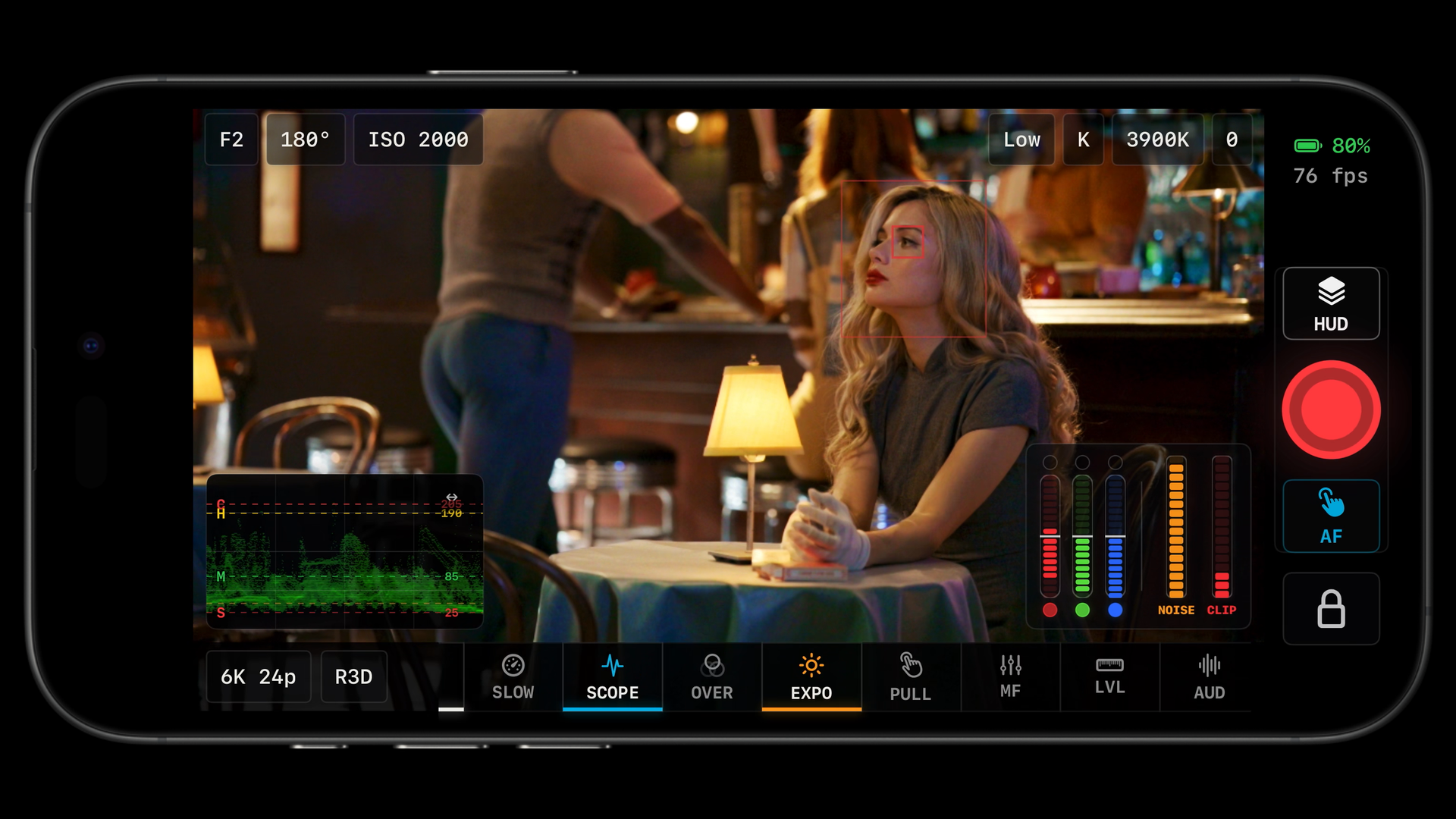
Live View is the monitor. It shows the camera picture with your readouts along the top, your tools along the bottom, the record button at your thumb, and every monitoring overlay drawn over the image. This chapter explains the layout and the controls that frame the picture. The tools themselves have their own chapters.
Tap and long-press
Every tool pill in the bottom toolbar and every hot corner works the same way. Tap turns the tool on or off, using its last mode. Long-press (hold for about a third of a second) opens the tool's options. If you would rather have a tap open the options, switch Tool buttons to Tool Menu in Advanced › UI › Bottom Toolbar. Most top-bar readouts are tappable too: tap the ISO chip and an ISO picker opens.
Two interfaces: Modern and Classic
Advanced › UI › Live View Layout › Interface picks between two layouts. Both have the same tools, menus and gestures.
- Classic (the default) is the original layout: a top chip strip, a bottom tool strip that ends with page shortcuts (CONN, CTRL, PLAY, ADV, MULTI), and a side rail with HUD/PLAY, the record button, AF and LOCK. On iPad the rail is a dock you can move to the other edge with the "Move Record Toolbar" button.
- Modern adds hot corners: up to two tools in each corner of the picture, with the record button in the side gutter on the side away from the camera housing and a Menu button at the bottom left for page navigation. Tools assigned to a corner leave the scrolling toolbar so they do not take up two slots.
Modern is faster once the app is on a cage or handle, because the four tools you toggle most sit under your thumbs. Classic is easier to learn and keeps everything in one place. The choice is not stored in presets, so a preset works in both.
The top bar
The top bar is a row of readouts (chips). In landscape they split into a left group and a right group around a gap; in portrait they scroll horizontally. You choose which chips appear and their order in Advanced › UI › Top Toolbar (see Advanced settings). The default order is Mode, Aperture, Shutter, ISO, Exposure Compensation on the left, then Dual Base ISO, WB, Kelvin, Tint and the camera battery on the right.
| Chip | Label | Shows | Tap |
|---|---|---|---|
| Mode | MODE | Exposure program (P, S, A, M, or U1 to U4 with the underlying mode). Hidden in video while the codec is R3D. | Opens the Mode picker on bodies that let the app set it; dial-based bodies show it read only. |
| Aperture | IRIS | f-number | Opens the aperture panel with the camera's own steps. |
| Shutter | SHUTTER | Shutter speed, or angle when the camera is in angle mode | Opens the speed or angle panel. In video the panel has an Angle / Speed switch on bodies that support shutter angle. |
| ISO | ISO | ISO | Opens the ISO panel. In video on a dual-base body the panel has a Base ISO switch. While movie ISO is locked during recording, a single locked row is shown instead. |
| Exposure Compensation | EV | Exposure compensation | Opens the Exp Comp picker. Hidden in R3D. |
| Res / FPS | REZ | Frame size and rate (video) | Opens the Res/FPS picker. Lives in the bottom-left strip by default; Advanced can move it to the top bar or hide it. |
| Codec | CODEC | Recording codec (video) | Opens the Codec picker. Same placement rule. |
| Dual Base ISO | BASE ISO | The active base ISO | Tap toggles the base directly. Shown as its own chip only when the ISO chip is hidden; otherwise it lives inside the ISO panel. |
| WB | WB | White balance mode | Opens the WB picker. |
| Kelvin | KELVIN | Colour temperature, only when WB is set to Kelvin | Opens the Kelvin panel with Fine −10 / +10 buttons. |
| WB Tint | TINT | Green–magenta tint, only when WB is Kelvin | Opens the tint grid (amber–blue by green–magenta) with Reset. |
| Battery | — | Camera battery percentage and icon | No action. In Modern landscape it sits in the gutter beside the record button. |
| iPhone / iPad Battery | — | This device's battery (off by default) | No action. |
| REMAIN | REMAIN | Camera-reported remaining card time as REM h:mm:ss. Video only; needs Remaining Time on in Advanced. | No action. Dropped first when the landscape bar is full. |
In landscape on the Modern interface the centre of the bar shows STBY, REC (with a red dot) or PHOTO, and the timecode row, which reads --:--:--:-- until the camera reports timecode. The FPS Counter badge beside the batteries shows the frame rate the phone is displaying, which is a measure of the connection, not the camera's recording rate. Hide Labels in Advanced drops the small descriptors above each value.
On iPhone, chips that do not fit a landscape group are dropped rather than squeezed. The fit meter in Advanced › UI › Top Toolbar shows how full each group is. Remove a chip, move one across the gap, hide labels, or lower the Top Toolbar Scale.
The bottom bar
The bottom bar has two parts. On the left, in video, sit the REZ and CODEC readouts; in photo mode the stills readouts TIMER, RELEASE, QUALITY, AREA and PIC take their place. On the right is the horizontally scrolling tool strip. Every pill can be hidden in Advanced › UI › Bottom Toolbar, and a pill is coloured by family: cyan for scopes, zoom, focus and utility tools, orange for exposure tools, green for audio, blue for desqueeze, white for LUT, peaking, level, guides and presets.
The default order, left to right, with the chapter that covers each:
| Pill | Mode | What it is | Chapter |
|---|---|---|---|
| TIME | Photo | Timelapse and intervalometer | Stills |
| REV | Photo | Photo review after each capture | Stills |
| STACK | Photo | Focus stacking | Stills |
| EXP | Photo | The camera's exposure meter | Exposure tools |
| LUT | Video | LUT preview on/off; long-press for Quick LUTs A to D | LUTs |
| LOOK | Video | The LUT browser | LUTs |
| MATCH | Video | Exposure, gamma and contrast around the LUT | LUTs |
| WIPE | Video | Split-screen LUT comparison | LUTs |
| SLOW | Video | One-tap slow-motion format | Controls |
| SCOPE | Both | Histogram, waveform, RGB parade, vectorscope | Exposure tools |
| FALSE | Both | False color | Exposure tools |
| PEAK | Both | Focus peaking | Focus tools |
| ZEBRA | Both | Zebras | Exposure tools |
| EXPO | Both | X-Lights and X-Posts | Exposure tools |
| PULL | Video | Focus pull between AF points | Focus tools |
| MF | Video | Manual focus drive | Focus tools |
| LOCAL / PUNCH / PZ / HI-RES | Both | Punch and zoom; the label follows the chosen mode | Focus tools |
| LVL | Both | Camera level | Framing |
| AUD | Video | Audio meters and input gain | Controls |
| CAST | Both | Remote Viewer broadcast | Remote Viewer |
| LENS | Both | Non-CPU lens profiles; only on bodies that expose lens data | Focus tools |
| REF | Both | Reference frame overlay | Framing |
| COMP | Both | Composition guides | Framing |
| FRME | Both | Frame guides and matte | Framing |
| DSQ | Both | Anamorphic desqueeze | Framing |
| SAVE | Both | Presets | below |
On RED cameras the TIME, PULL, MF and LENS pills and the REMAIN, Mode and EV chips are hidden, because RED's control protocol does not offer them. Everything else runs on the RED picture.
Hot corners Modern
Each corner of the picture holds up to two buttons: a primary and a secondary. They behave exactly like the toolbar pill they mirror, including the long-press menu. In landscape the clusters stand vertically on the left and right edges with the record button between the right-hand pair; in portrait they sit above and below the picture. The defaults:
| Corner | Primary | Secondary |
|---|---|---|
| Upper left | LUT | Focus Peaking |
| Lower left | Scope | False Color |
| Upper right | HUD / Play | Touch AF |
| Lower right | Zebras | Rotation Lock |
Three tools exist only as corner or rail buttons:
- HUD / Play: reads HUD in video and toggles the HUD. In photo mode it reads PLAY by default and opens QuickPlay, a still viewer with favourites, ratings, picks, colour tags, save and delete. Long-press opens the Stills Button menu to choose Play or HUD for photo mode.
- Touch AF (AF): turns tap-to-focus on or off. See Focus tools.
- Rotation Lock (LOCK): locks the interface orientation so the layout stops rotating when the rig tilts.
Assign tools, turn corners on or off and scale them in Advanced › UI › Hot Corners.
Hiding the HUD
Double-tap the picture, the top bar or the bottom bar to hide or show the HUD. The hot corners, the record button and the HUD/Play button stay so you can always get it back. By default the floating tools (scopes, audio meters, legends, X-Lights, the recording timer badge and FLIP) hide with the HUD; turn on Tools Stay On in Advanced › UI › Live View Layout to keep them while the chrome is hidden.
Hide the HUD to show a client the frame, or when you have set exposure and only need peaking and the recording border. With Tools Stay On you can run a clean picture with just a waveform in the corner.
The record button
The round button is red in video and white with a camera glyph in photo mode, and becomes a white square while recording. It sits in the side rail (Classic) or in the landscape gutter on the side away from the notch (Modern).
- Video: tap to start, tap to stop. One tap sends exactly one start command.
- Photo: tap to capture. With an app timer set, the countdown runs first and a second tap cancels it. During a Bulb or Time exposure a tap closes the shutter. Holding the button drives continuous release on bodies that support it.
- The button is disabled while a record or capture command is in flight, during the refresh after a stop, while the camera is busy with another command and while a focus stack runs. While a TIME sequence runs, the button stops the sequence.
- The phone's volume buttons, the iPhone Camera Control button and a Bluetooth shutter remote trigger the same action when no panel is open. See Controls.
While recording, the Recording Border draws a red frame around the picture and the Recording Timer badge shows elapsed time or the camera's timecode. Both can be turned off in Advanced. If a recording fails to start, a yellow or red notice near the top of the picture says why; the reasons are listed in Controls.
Gestures
| Gesture | Where | Effect |
|---|---|---|
| Tap | Picture | Touch AF at that point. In Focus Pull's Add Points mode a tap adds a point instead. Ignored while Focus Punch is active. |
| Double-tap | Picture, top bar, bottom bar | Hide or show the HUD. |
| Drag | Picture | Pans Monitor Punch or Focus Punch while a zoom tool is on. |
| Pinch | Picture | Nothing on Nikon or RED pictures. Use the ZOOM tool to magnify. |
| Drag | WIPE divider | Moves the split. |
| Drag handle / pinch | Scope panel | Resizes the scope between 0.85x and 2.4x. Double-tap the scope resets it to 1x. |
| Drag | Focus Pull point markers | Moves a point when the pull is not running. |
| Drag | MF tape | Drives focus; faster drags take bigger steps. |
| Long-press then drag | Any floating tool | Moves it. Positions are saved per interface and orientation. |
| Hold | Power Zoom W / T | Zooms while held. |
The movable floating tools are the scope, the false color legend, the audio meters, the exposure meter, X-Lights and X-Posts, the recording timer badge, FLIP, the reference opacity panel, the Multicam return button and the HDMI/SEEMO chip. Reset On-Screen Tool Positions in Advanced returns them all to their anchors.
Orientation, FLIP and fill
- The picture follows the camera's own orientation: grip up, grip down or upside down, read from the Live View metadata, so a vertical rig shows a vertical picture.
- In portrait a draggable FLIP button rotates the portrait-filled feed by 180 degrees for rigs where the camera is mounted the other way up.
- Fill in the FRME menu fills the landscape screen with the picture. It is on by default on iPad and on 4.7-inch iPhones.
- LOCK (rotation lock) freezes the interface orientation. It is cleared when the active preset is deleted.
- On iPhone the Modern layout keeps a 140-point keep-out around the notch or Dynamic Island and places the record button on the opposite side. iPad has no keep-outs; in portrait the hot corners move into the side gutters when there is room.
Photo mode differences
The app follows the camera's photo/video selector; there is no switch in the app. In photo mode the LUT preview is turned off (and restored when you return to video), the audio meters are hidden, the top centre reads PHOTO, and the bottom-left strip shows the stills readouts. The photo tools (TIME, REV, STACK, EXP) appear at the start of the toolbar. See Stills, timelapse, stacking.
Presets (SAVE)
The SAVE pill opens the Presets panel. Save New Preset… stores the current layout under a name you choose. When a preset is active, Save to Preset overwrites it with the current state. Each saved preset is a row: tap to apply, long-press for Rename or Delete. Three presets are created on first launch: Full HUD, Clean (icons only, labels hidden) and Minimal (a seven-tool toolbar and a short top bar).
A preset stores the whole Live View setup: tools and their modes, LUT and Match values, guides, scope and peaking settings, toolbar and top-bar visibility and order, scales, floating positions, hot corners, rotation lock and optionally the recording format. The full list is in Advanced settings.
Make one per job type: a "Gimbal" preset with the level, a small scope and icons only; an "Interview" preset with the waveform, audio meters and skin-line vectorscope; a "Client" preset with a clean picture and the LUT on. If a preset includes a recording format, applying it also sets that format on the camera.
Status notices and link loss
Notices appear as badges near the top of the picture: a yellow badge for a refused camera setting, a red one for a failed record start, and a short yellow chip when a zoom mode cannot be enabled. If the connection drops, the last frame freezes with a No link message and a Back to Connection button. The app never reconnects by itself while the camera is recording; see Connection for why.
Performance, heat and battery
The picture and recording always come first. When the phone gets hot or Low Power Mode is on, the analysis overlays (scopes, false color, peaking) update less often so the preview and the recording keep running. The preview resolution, quality, USB frame-rate cap and GPU display setting are in Advanced › Monitoring › Preview, with advice on which to lower for a weak Wi-Fi link.
Something missing or wrong on this page? Email mike@itsmadcreative.com with the page name and what you expected to find.