Chapter 09
LUTs and looks.
A LUT lets you watch flat log footage as it will look after grading. The app applies the LUT on the phone only; the camera keeps recording the original. Four pills manage it: LUT, LOOK, MATCH and WIPE.
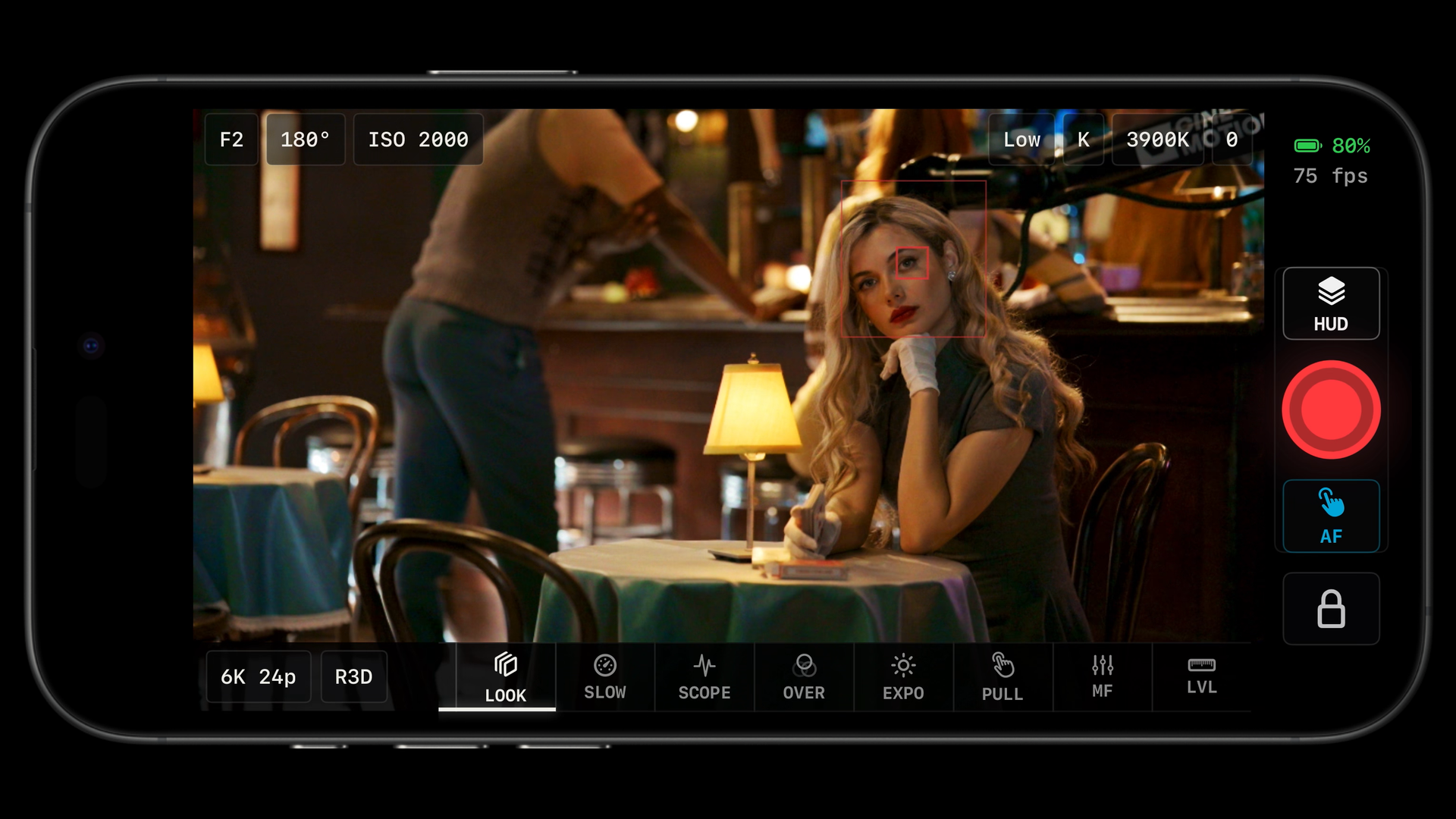
LUT: on and off, Quick LUTs Video
In the Quick LUTs panel, tap a slot to apply it (an empty slot reads EMPTY and opens the folder picker so you can fill it). Long-press a slot to reassign it from the folders or to import a .cube file straight into that slot. Applying a slot also turns the LUT on.
Photo mode turns the LUT preview off and restores it when you return to video. During a brief Nikon stream restart the LUT is suppressed without changing your choice.
Put your technical conversion in A (N-Log to Rec.709 or an IPP2 LUT), the show look in B, and alternatives in C and D. A tap on the pill still toggles whatever is active, so you can flick between log and look without opening anything.
LOOK: the LUT browser Video
Tap or long-press opens LUT Folders. The pill is lit while a LUT is enabled.
| Folder | Contents | Use with |
|---|---|---|
| IPP2 Rec709 (16) | RED's Log3G10 to Rec.709 BT.1886 conversions: contrast None, Low, Medium or High, each with a highlight roll-off of Hard, Medium, Soft or Very Soft. | R3D on the ZR and RED cameras. Medium contrast and medium roll-off is the default; pick a softer roll-off to see more highlight detail. |
| N-Log (5) | Nikon's N-Log BT.2020 to Rec.709 conversion, plus RED FilmBias, FilmBias Offset, Achromic and FilmBias Bleach Bypass built for N-Log. | N-Log on any Nikon body. Start with the Nikon conversion. |
| RED Creative (32) | RED's creative looks: Achromic, Awash, Base, Bipolar, Blau, Bleach 1 and 2, seven black and white looks, Caustic, Chromatic, Deep Chroma, FilmBias, FilmBias Bleach Bypass, FilmBias Offset, Flash, Fluoresce, Grime, Lush, Mauve, Narcissus, Pastel, Process, ST4, Supercolor, Tech, Zone. | Log3G10 footage. They include the conversion, so use one on its own, not on top of an IPP2 LUT. |
| User (n) | Your imported .cube files. | Show LUTs, colourist conversions, camera-matching LUTs. |
| Built In | Any bundled LUT not in the folders above. |
Inside a folder, tap a LUT to select it. Import .cube LUT… opens the Files picker. In the User folder, Delete Selected User LUT removes the selected import, and any imported row can be long-pressed for Delete; the confirmation lists the presets and quick slots that reference it, all of which fall back to the default LUT.
A LUT built for Log3G10 looks wrong on N-Log and the other way round: skin goes green or magenta and contrast is off. Check the folder matches the codec you are recording. The exposure tools know the curve from the codec, so a wrong LUT does not break them, but it will mislead your eye.
MATCH: exposure, gamma and contrast Video
Opening the panel turns LUT compensation on. The exposure and gamma shifts happen before the LUT, so they behave like exposing the log differently; contrast is added to the LUT output. None of it touches the recording or the exposure tools.
When you deliberately expose log brighter than nominal (a common N-Log practice) the standard conversion looks too bright. Pull Exposure down by the same amount and the LUT shows what the colourist will see after normalising. Gamma lifts or lowers the mids; the contrast slider is a taste control for a flat LUT.
WIPE: split comparison Video
Tap toggles a split screen: the LUT on one side, the ungraded picture on the other, with a draggable divider that starts at the middle. Turning WIPE on also turns the LUT on. It is not available while an HDMI or SeeMo picture source is in use.
Showing a client what the log looks like next to the look, or checking a creative LUT is not crushing shadows that the log still holds.
Analysis stays under the LUT
With Analyze Pre-LUT on in Advanced › Monitoring › Scopes (the default), scopes, zebras, false color and X-Lights read the signal before the LUT. The LUT changes what you see; the tools measure what is recorded. Turn it off only when you record a baked-in Rec.709 look and want the tools to read the final image. See Exposure tools.
LUTs in Playback and Multicam
- The clip player has two slots: LUT A follows Live View, LUT B is a saved look (the N-Log conversion by default). Advanced › Playback chooses which the player starts on. Clips can be saved to Photos with the LUT baked in. See Playback.
- In Multicam each tile has its own LUT. See Multicam.
- On RED cameras, turning on an app LUT switches the camera to Log View so the camera's own look is not applied underneath, and restores it afterwards. See RED cameras.
The LUT library
Advanced › Monitoring › LUT Library lists every imported LUT with the places it is used, imports new .cube files and deletes old ones. Only 3D .cube files are supported. If an import fails, re-export the LUT from your grading software as a 33-point 3D cube. See Advanced settings.
Something missing or wrong on this page? Email mike@itsmadcreative.com with the page name and what you expected to find.